

These steps apply only if you are using the Wallet Gateway as your signing provider. Other CIP-103 wallets manage the primary party in their own interface.
Switch Your Primary Party
- Navigate to the bottom of the side navigation and click the Wallet Gateway button.
.png?fit=max&auto=format&n=Da7mtNffkqDSwglF&q=85&s=af04070979ac47758ce2a43fae019427)
- A pop-up window appears where you can review existing parties in the Parties tab. The selected party has a Primary tag to indicate which party you are currently operating from.
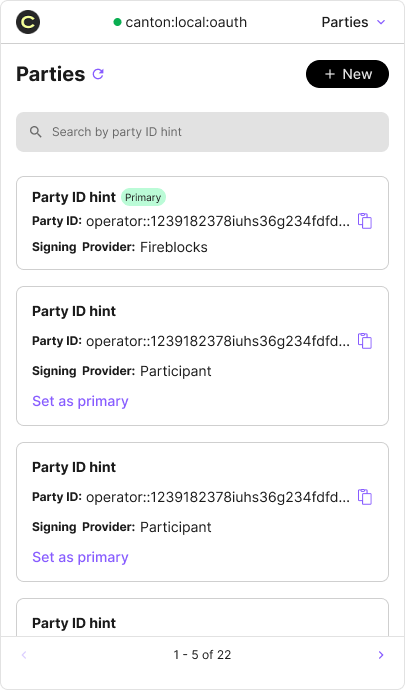
- Click Set as primary on another party to change it. You can also create a new party using the + New button at the top. Check Set as the primary party if you want to use it right after creating it.
- Go back to Splice Portfolio to continue conducting transactions with the new party.
Related
- Party Management — Create, organize, and remove parties in the Wallet Gateway